How to buy from DLsite outside Japan in 2026
Buying from DLsite outside Japan is easiest when you separate the game purchase from the card payment. If you want to use Visa or Mastercard, VSA recommends buying viviON Points through DPay, then using those points on DLsite.
Start here
Buy from DLsite overseas with a points-first checkout.
The order matters. Create the DLsite account first, choose the game, then buy only the viviON Points you need. This is the clearest route for overseas buyers using Visa or Mastercard.
Create a free DLsite account
Use DLsite’s registration page and create the account before buying any points. Email registration is the cleanest route for an overseas buyer because your email address becomes the login anchor you will use again on DPay.
- Open the English registration page.
- Enter your email address.
- Open the verification email from DLsite.
- Set the requested account information and password.
- Return to DLsite and confirm that you can sign in.
Choose the game before buying points
Open the product page and check the current price, language, operating system, file or viewing method, and whether the work is a base game or requires another title.
- Confirm English support on the live product page.
- Check whether a sale is active.
- For DLC or Append titles, confirm the required base game first.
Open DPay and choose a viviON Points amount
DPay states that it is officially authorized by DLsite as a point-sales service. Choose enough viviON Points to cover the game price.
Rule of thumb: 1 viviON Point = ¥1.
Verify the DLsite account and pay on DPay
DPay links the point purchase to the DLsite account you verify. Confirm the browser domain before entering login information, then use only a payment option displayed on the live DPay checkout.
- Checked September 7, 2026: DPay displays Visa, Mastercard, JCB, UnionPay, American Express, Apple Pay, and Google Pay.
- DPay states that settlement is in TWD; the USD amount is a reference estimate.
- Points are automatically credited to the verified DLsite account after payment.
Confirm that the points arrived
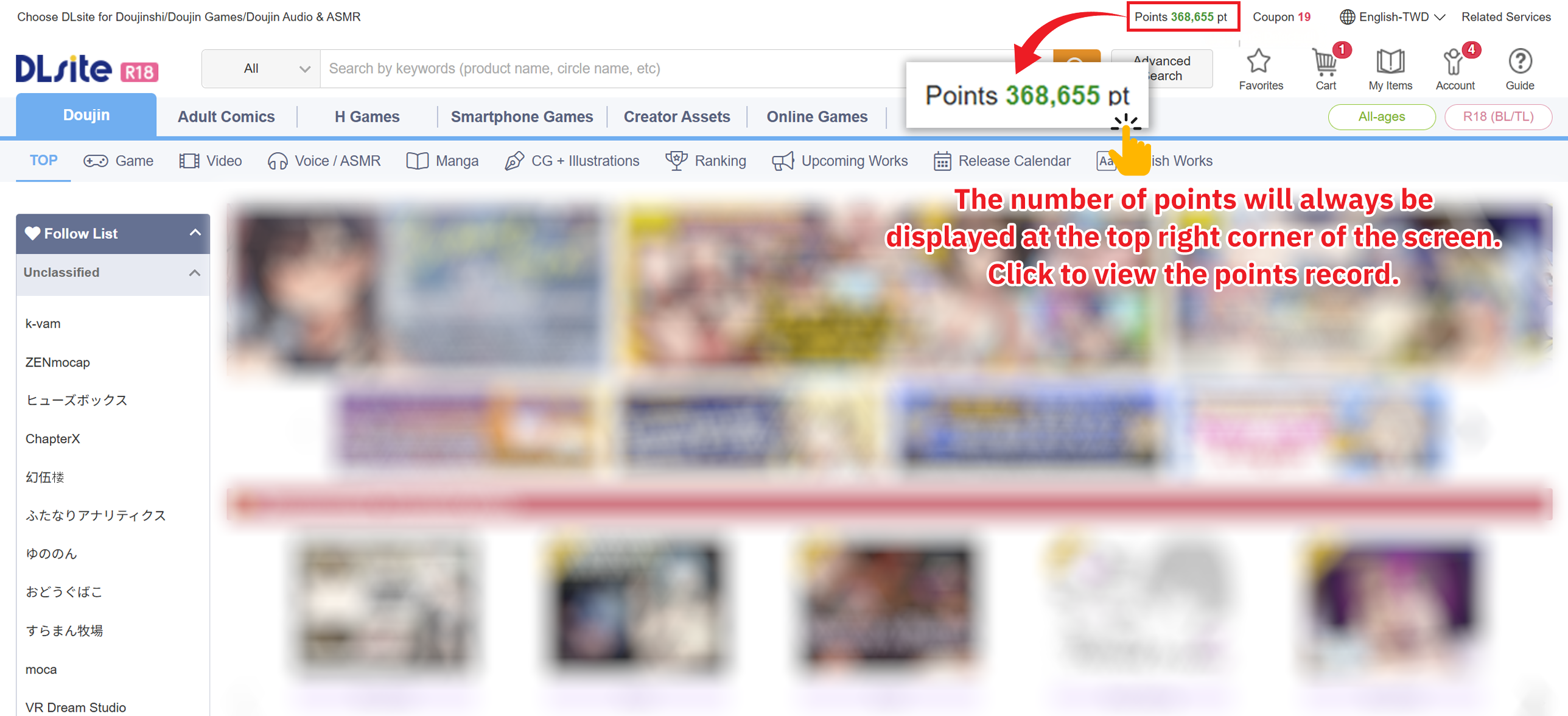
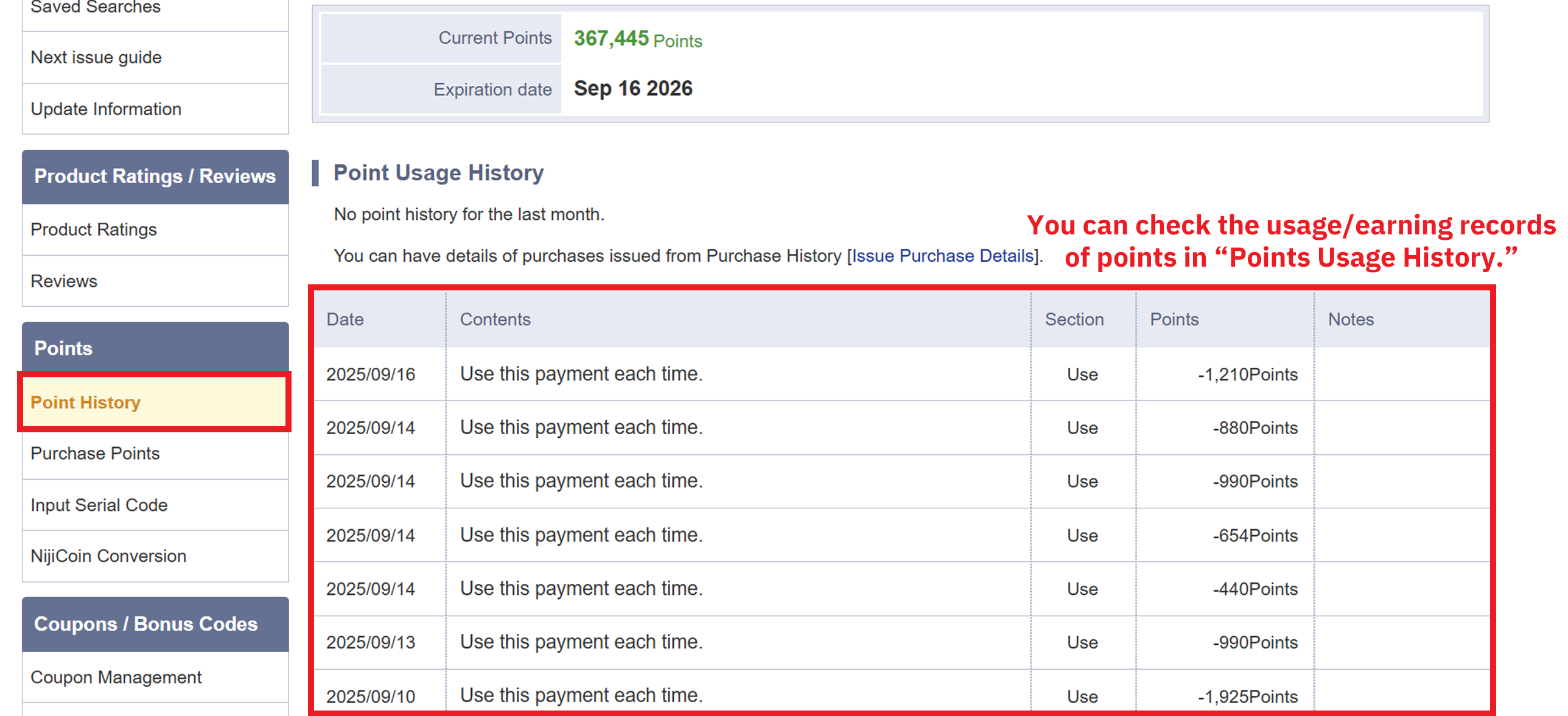
Return to DLsite and check the point balance before attempting the game purchase. DPay’s official tutorial shows the available balance near the top-right area of the DLsite interface and links to Point History.
Pay for the game with viviON Points
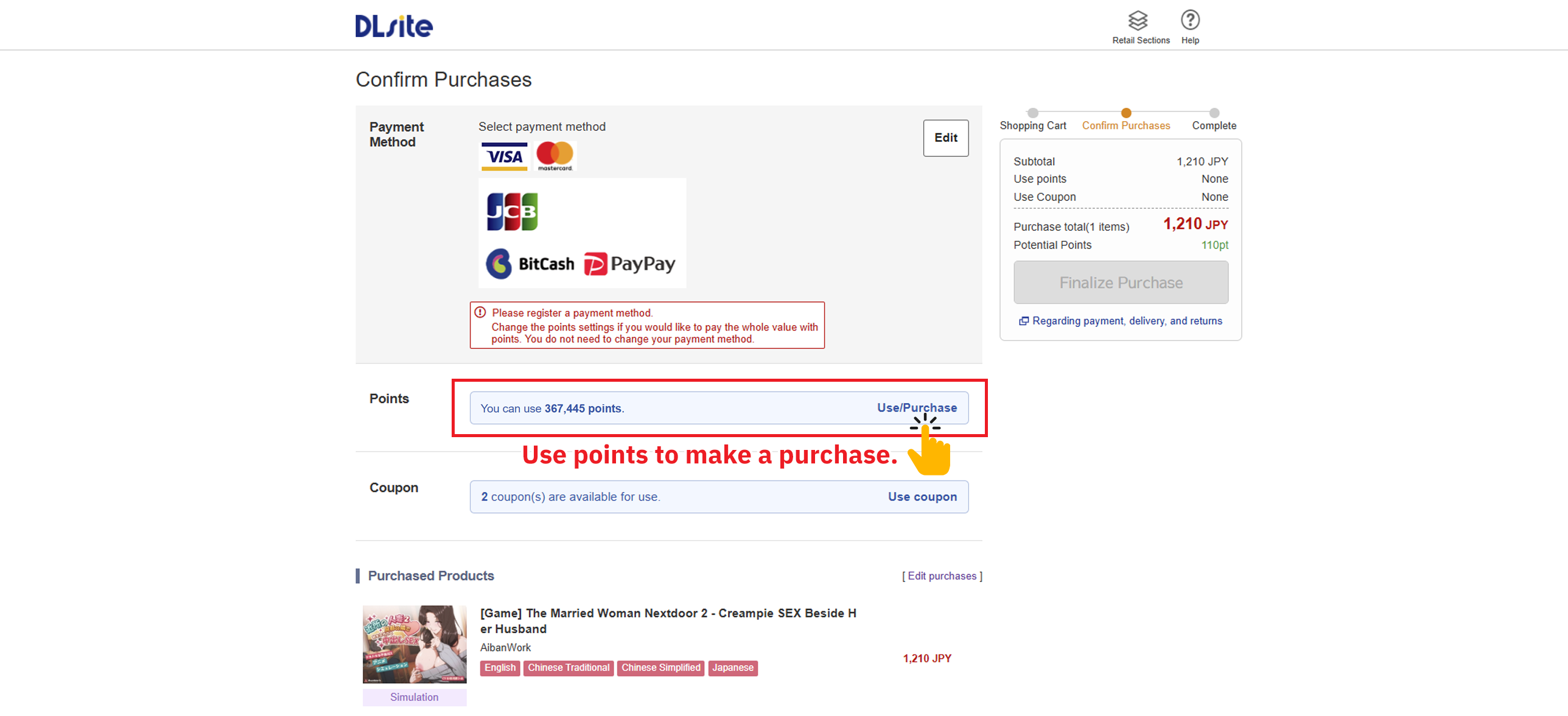
At the DLsite purchase screen, choose the points option. DPay’s official tutorial currently shows “Use Points to Purchase,” with options for using all or part of the balance.
Check the amount of points used and confirm the purchase
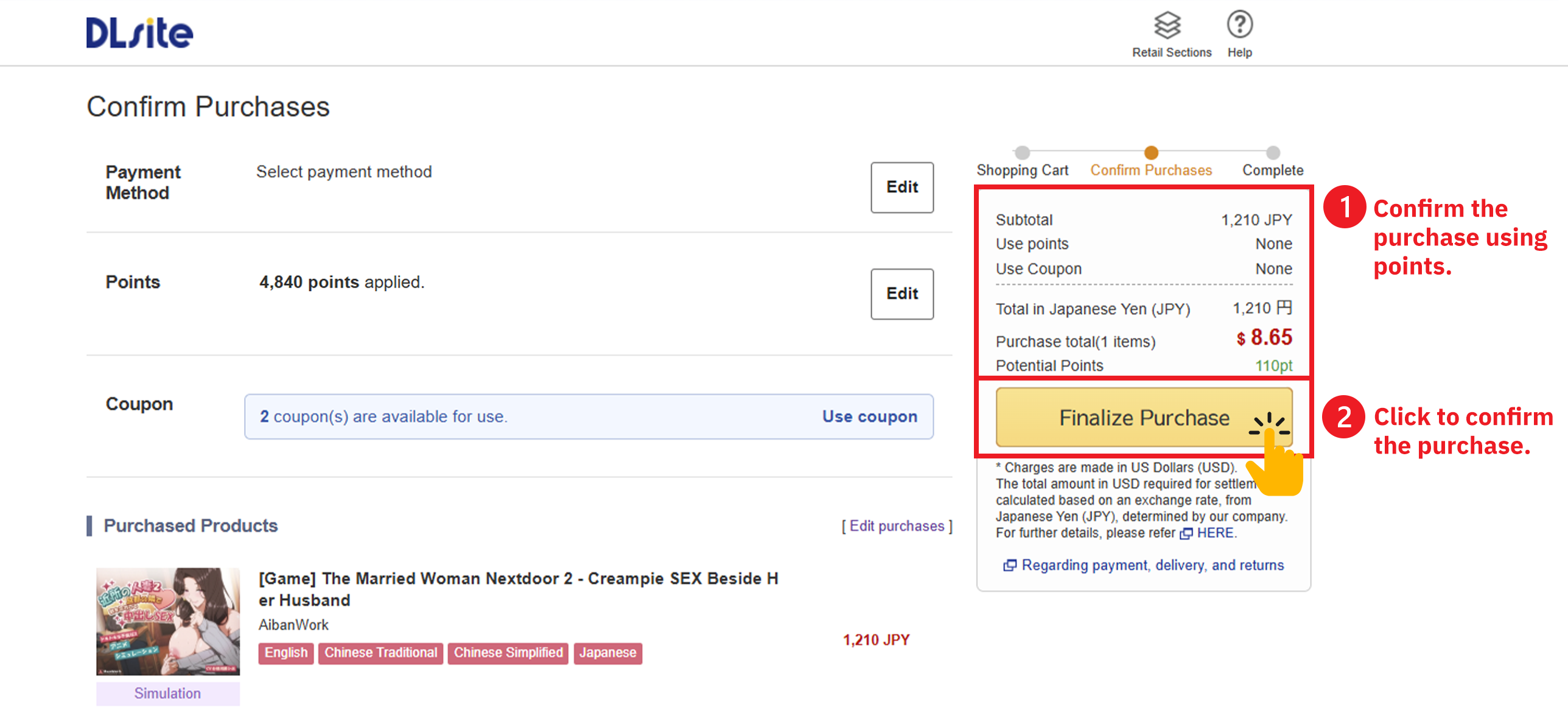
If you have enough points, using the full point amount keeps the overseas payment flow simple. Recheck the amount before confirming the order.
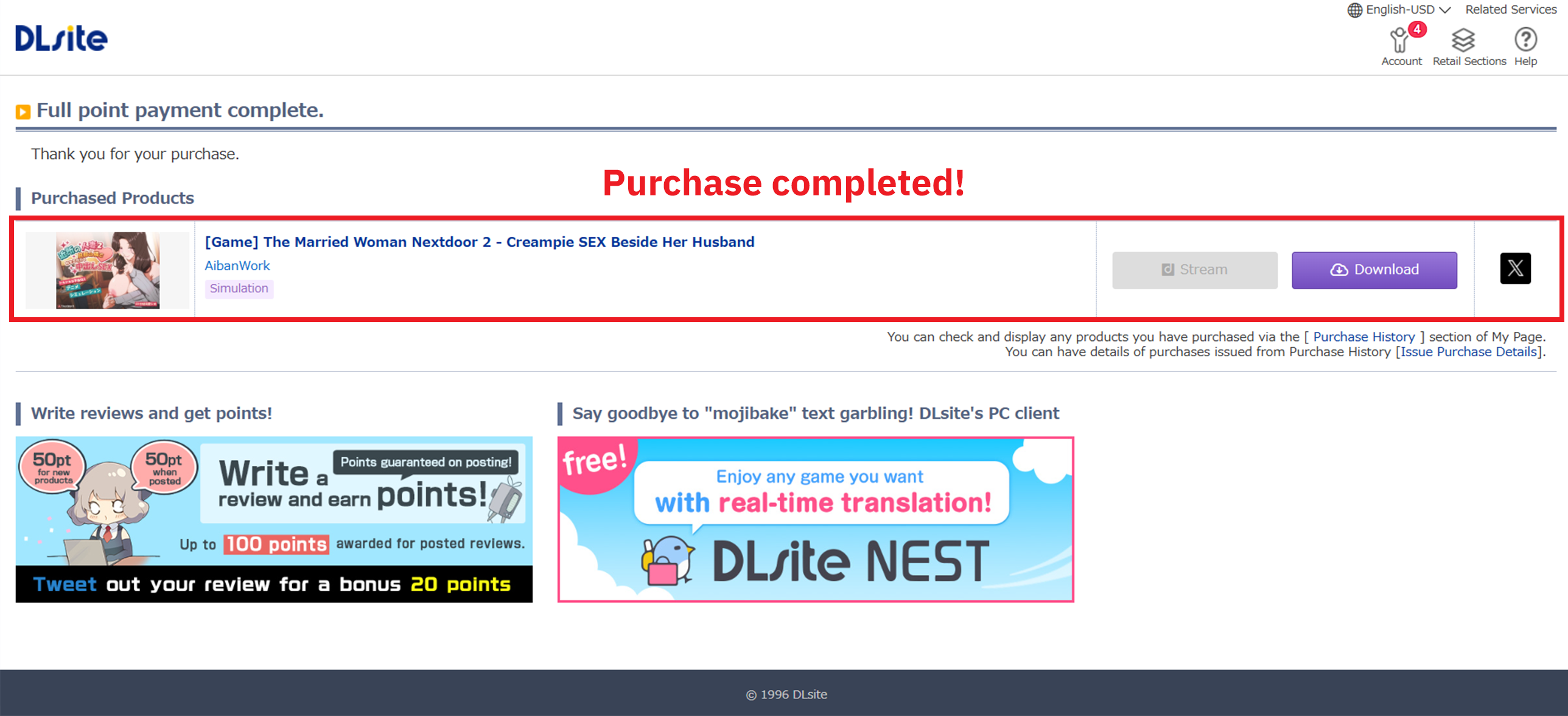
Open Purchase History and access the game
After the order completes, use the same DLsite account and open your purchases. Depending on the product, access may be a direct download, browser viewing, DLsite Play, or another method specified on the product page.
Before spending money
Seven checks before buying from DLsite overseas.
Official references
Use these live pages for the final check.
FAQ
Common questions from overseas buyers.
Do I need a DLsite account before I buy?
Yes. DLsite abolished guest purchasing, so create and verify the account first. Keeping the same account throughout also ensures that your points and purchase history stay together.
What is the simplest way to buy from DLsite outside Japan?
VSA recommends account first → choose the game → buy enough viviON Points through DPay → return to DLsite → pay with points. This route works without relying on Visa or Mastercard direct card payment on DLsite.
Can I use Visa or Mastercard to buy from DLsite?
For Visa or Mastercard, use DPay to buy viviON Points and then use those points on DLsite. DLsite’s published April 22, 2024 notice says Visa, Mastercard, and American Express credit-card payments are unavailable for the time being. DPay currently displays Visa and Mastercard on its live checkout; availability can change, so confirm the payment methods shown when you pay.
Can I use DLsite from the UK, USA, Europe, or elsewhere?
This guide is written for buyers outside Japan, but product availability and payment options can vary by account, region, and checkout. Start with the normal DLsite product page, confirm the title is available to you, and use the live DPay checkout for the payment methods currently offered.
Do I need a VPN to buy from DLsite?
Do not assume that a VPN is required. First open DLsite normally and check whether the product and checkout are available for your account and region. VSA does not recommend using a VPN to bypass product, regional, payment, or legal restrictions.
How many points should I buy?
1 viviON Point equals ¥1. Recheck the live product price immediately before buying points, especially during a sale.
Where is the game after purchase?
Open Purchase History on the same DLsite account. The product page determines whether the work is downloaded, viewed in the browser, opened in DLsite Play, or accessed another way.
Buying from DLsite overseas? Use the points route with confidence.
Create the account first, choose the game, buy only the viviON Points you need, then complete the purchase on DLsite. For Visa or Mastercard, DPay is the payment route covered by this guide.